

Digital passport photo UK rejected: what to do
If the online application flags your photo, the cause is usually one of a few common problems. Here is how to spot it, fix it and upload a photo that meets GOV.UK's rules.
Contents
A UK online passport application needs one digital photo, taken within the last month. It should show your head, shoulders and upper body, and you should upload it uncropped and unedited. GOV.UK sets the pixel and file size limits for the upload, so check them before you send it. If the online service flags your photo, the cause is usually the background, light, glasses, or a photo that has been cropped or edited. You can also prepare the photo online from a good-quality selfie in SelfieDoc.
What the online service tells you
When you upload a photo or take one during your online application, GOV.UK checks it. If it finds a problem, a message tells you what is wrong. We do not quote that message word for word here, because the wording on GOV.UK can change. Read it carefully. It usually points to one issue, such as light, background, your expression or the position of your face.
Fix that issue first, then upload again. If the message is not clear, go through the checklist below.
UK digital passport photo requirements
These are the rules most often broken. Each line in the table comes from GOV.UK.
| Parameter | Requirement | Source |
|---|---|---|
| Number of photos | 1 digital photo online; 2 identical printed photos for a paper form | GOV.UK: photos for passports |
| How recent | Taken within the last month | GOV.UK: photo requirements |
| Framing (digital) | Head, shoulders and upper body; do not crop it yourself | GOV.UK: photos for passports |
| Background | Plain and light, with clear contrast between you and the background, and no objects or other people; for printed photos GOV.UK names cream or light grey | GOV.UK: photos for passports |
| Quality | In colour, sharp, in focus, no red eye, not edited in software | GOV.UK: take your own passport photo |
| Pixels and file size for upload | Check the current limits on GOV.UK before uploading | GOV.UK: take your own passport photo |
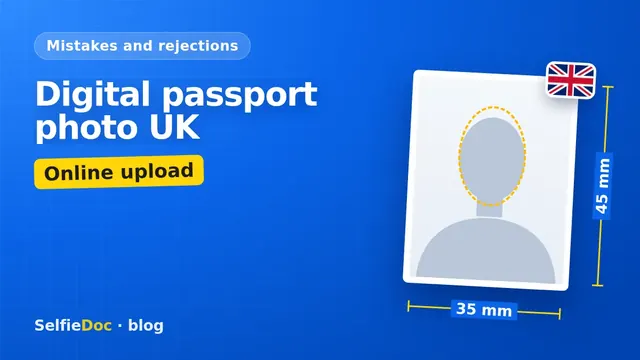
| Printed photo size (paper forms only) | 45 mm high × 35 mm wide | GOV.UK: photo requirements |
| Pixels for printing | 413×531 px at 300 dpi (a print calculation, not a GOV.UK requirement) | Calculated from 35×45 mm |
Checked: October 2026 against GOV.UK.
On upload limits: the pixel size and file size for the online upload are not confirmed here, so check the current limits on GOV.UK before you upload.
For the full list, including printed photos, see our guide to UK passport photo requirements.
Five common reasons a digital passport photo fails
1. Shadows on your face or behind you
GOV.UK asks for no shadows on the face or behind the head. A window to one side or a ceiling light right above you causes both.
How to fix it: face a window in daylight. Stand a little away from the wall so your shadow does not fall on it. Turn off the overhead light if it makes dark patches under your eyes.
2. A busy or dark background
The background must be plain and light, with clear contrast between you and it. Doors, pictures, plants or another person in the frame all count as a problem.
How to fix it: stand in front of a plain light wall. If you have none, hang a plain light sheet behind you and smooth out the folds.
3. Your face, eyes or expression
GOV.UK wants you to look straight at the camera with a neutral expression, mouth closed and eyes open. Hair must not cover your eyes.
How to fix it: keep your head level, without tilting it up, down or to the side. Tie your hair back or move your fringe away from your eyes. Close your mouth and relax your face.
4. Glasses or a head covering
Photos are best taken without glasses. If you need to wear them, they cannot be sunglasses or tinted. The frames, glare, reflections and shadows must not cover your eyes. Head coverings are only allowed for religious or medical reasons, and your face must stay fully visible.
How to fix it: take your glasses off if you can. If you cannot, tilt them slightly down and move away from direct light to remove glare.
5. A cropped, edited, old or wrongly sized file
GOV.UK asks you not to crop the photo, because the online service crops it. It also asks you not to edit it in software. A photo older than one month is also not suitable, even if you look the same. A file that is too small or too large for the upload limits can also cause trouble.
How to fix it: take a new photo with your head, shoulders and upper body in the frame. Save it at normal camera quality, without filters or adjustments. Check the file size and dimensions against the limits on GOV.UK.
How to stop it happening again
Run through this list before you upload or take your photo in the application:
- The photo is in colour, sharp and in focus.
- It was taken in the last month.
- Your head, shoulders and upper body are in the frame.
- The background is plain and light, with nothing and nobody behind you.
- There are no shadows on your face or the wall.
- You look straight at the camera, mouth closed, eyes open and visible.
- Glasses are off, or the frames and glare do not cover your eyes.
- The file has not been cropped, filtered or retouched.
- You have checked the current upload limits on GOV.UK.
If you are applying for a child, the child must be alone in the photo. Children under 6 do not need to look straight at the camera or keep a neutral expression. For babies under one, GOV.UK suggests laying them on a plain light sheet and taking the photo from above, with no toys or dummies. SelfieDoc is for adults aged 18 and over, so prepare a child's photo another way.
Ways to get and upload a photo for your UK application
You have three realistic routes. Each one works for an online UK passport application.
| Route | How it works | Things to watch |
|---|---|---|
| Your own device | Take the photo during the online application | You need someone to help you; a selfie at arm's length is not the same |
| Photo booth or studio | Get a digital photo with a code, then enter the code in your application | Prices vary between booths and studios |
| Online from a selfie | Upload a good selfie to an online service and download the file | Good light and a neutral expression still matter |
GOV.UK says photos from a booth or studio are more likely to be accepted than ones taken on your own device. If you take it at home, our guide to taking a passport photograph with your phone covers light and framing. For the broader question of doing it yourself, see can I take my own passport photo. That article is written for US rules, but the camera and lighting tips apply here too.
If you prepare your photo with SelfieDoc, the service crops it, evens out the background and fits it to the UK passport format. It does not change your facial features. You still need a sharp, well-lit selfie taken in the last month for a good result.
Sources
FAQ
Can I take a UK passport photo online?
Yes. GOV.UK lets you take your own digital photo during the online application, but you need someone to help you. You can also get a digital photo with a code from a photo booth or studio, or prepare one from a good selfie with an online service such as SelfieDoc. GOV.UK says booth and studio photos are more likely to be accepted than ones taken on your own device.
How many photos do I need for a UK passport application online?
One digital photo. Two identical printed photos are only needed if you apply with a paper form.
Can I crop or edit my digital passport photo before uploading?
GOV.UK asks you not to crop the photo yourself, because the online service crops it. It also asks you not to edit the photo in software. Upload a photo that shows your head, shoulders and upper body.
How recent does my UK passport photo need to be?
It must have been taken within the last month. You need a new photo for every new passport, even if you look the same.
What file size and pixel dimensions does the upload need?
The pixel size and file size limits for the online upload are not confirmed here. Check the current limits on GOV.UK before you upload.
Can I use a photo booth code instead of uploading a file?
Yes. Some booths and studios give you a digital photo with a code. You enter that code in your online application instead of uploading a file.
Comments
Only registered users can comment
Sign in to commentSign in with the same account you use for SelfieDoc.
No comments yet. Be the first to ask a question, and we’ll answer.